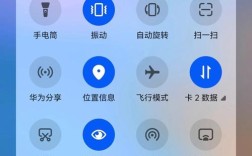
- Android 状态栏:如何修改状态栏的外观(颜色、图标、内容等)。
- Android 网络:如何检测网络状态、进行网络请求以及处理相关权限。
Part 1: Android 状态栏
状态栏是位于屏幕顶部的系统栏,通常显示时间、信号、电池等信息,在 Android 开发中,我们经常需要自定义其外观,以实现沉浸式体验或与应用主题保持一致。

1 修改状态栏颜色(沉浸式状态栏)
这是最常见的操作,让状态栏颜色与 Toolbar 或 AppBarLayout 的背景色一致。
实现步骤:
-
设置
windowTranslucentStatus为true这一步是让状态栏区域变得透明,为后续设置颜色留出空间。<!-- 在 res/values/styles.xml 或 res/values/themes.xml 中 --> <style name="AppTheme" parent="Theme.MaterialComponents.Light.NoActionBar"> <!-- 让状态栏透明 --> <item name="android:windowTranslucentStatus">true</item> </style>注意:从 Android 6.0 (API 23) 开始,这个属性需要设置
true,对于低于 6.0 的版本,透明状态栏效果不佳。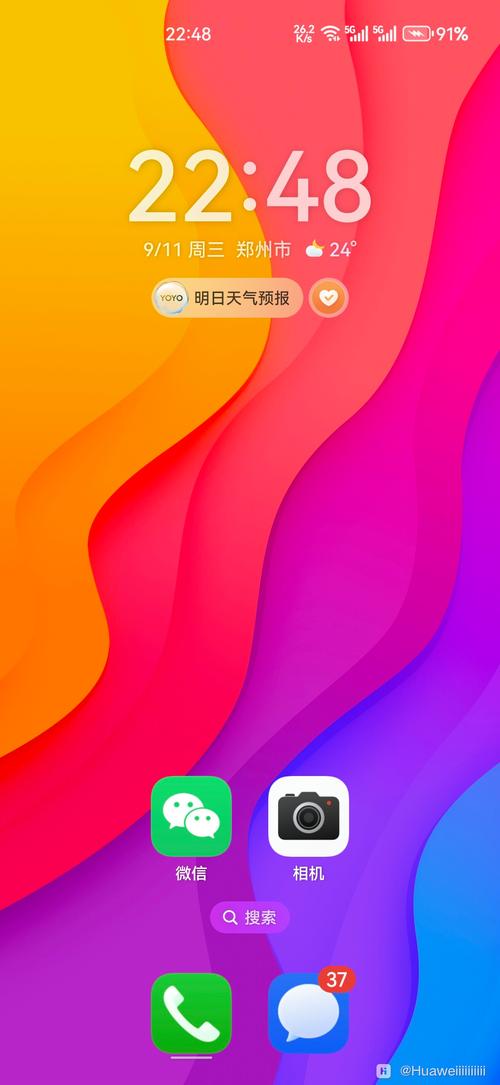 (图片来源网络,侵删)
 -
在布局文件中添加
fitsSystemWindows为了防止你的内容(如Toolbar)被状态栏遮挡,需要在根布局或相关布局上添加android:fitsSystemWindows="true",这个属性会告诉系统你的布局需要为系统窗口(如状态栏)留出空间。<androidx.constraintlayout.widget.ConstraintLayout xmlns:android="http://schemas.android.com/apk/res/android" xmlns:app="http://schemas.android.com/apk/res-auto" android:layout_width="match_parent" android:layout_height="match_parent" android:fitsSystemWindows="true"> <!-- 关键属性 --> <com.google.android.material.appbar.AppBarLayout ... > <androidx.appcompat.widget.Toolbar ... /> </com.google.android.material.appbar.AppBarLayout> <!-- 其他内容 --> </androidx.constraintlayout.widget.ConstraintLayout> -
设置状态栏颜色 你可以通过代码或 XML 来设置状态栏的颜色。
-
在
onCreate中设置(推荐)// 在 Activity 的 onCreate 方法中 @Override protected void onCreate(Bundle savedInstanceState) { super.onCreate(savedInstanceState); setContentView(R.layout.activity_main); // 设置状态栏颜色 if (Build.VERSION.SDK_INT >= Build.VERSION_CODES.LOLLIPOP) { // API 21 (Lollipop) 及以上版本 Window window = getWindow(); window.addFlags(WindowManager.LayoutParams.FLAG_DRAWS_SYSTEM_BAR_BACKGROUNDS); window.setStatusBarColor(getResources().getColor(R.color.your_color)); } }R.color.your_color是你在res/values/colors.xml中定义的颜色。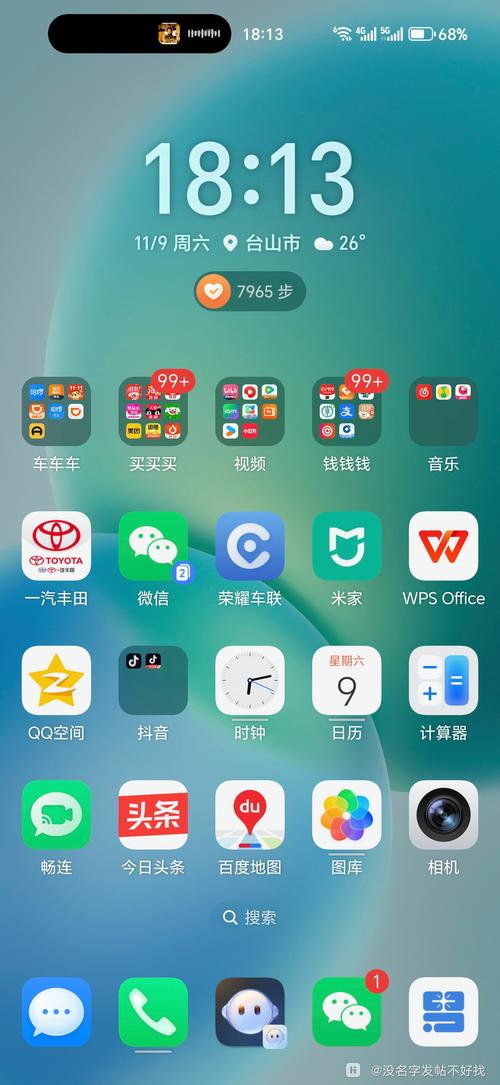 (图片来源网络,侵删)
 -
使用
Toolbar的contentInsetStart如果你使用Toolbar,并且想让Toolbar的背景色直接延伸到状态栏,可以设置Toolbar的android:background,并确保AppBarLayout的高度足够。<com.google.android.material.appbar.AppBarLayout android:layout_width="match_parent" android:layout_height="?attr/actionBarSize" android:background="@color/your_color"> <androidx.appcompat.widget.Toolbar ... /> </com.google.android.material.appbar.AppBarLayout>这种方法在 API 21+ 上通常能自动实现沉浸式效果。
-
2 修改状态栏图标和文字颜色
状态栏的图标(信号、Wi-Fi、电池等)和文字的颜色默认是深色的(半透明白色),在浅色背景上可能看不清,我们可以将其设置为浅色(白色)。
实现步骤:
-
创建
values-v21和values-v23文件夹 因为修改状态栏图标的 API 从 23 开始才稳定,我们需要为不同版本创建资源。 -
在
res/values-v21/themes.xml中定义浅色主题<!-- res/values-v21/themes.xml --> <style name="AppTheme" parent="Theme.MaterialComponents.Light.NoActionBar"> <!-- ... 其他属性 ... --> <item name="android:windowLightStatusBar">true</item> </style>android:windowLightStatusBar="true"会强制状态栏的图标和文字变为深色。 -
在
res/values-v23/themes.xml中定义深色主题<!-- res/values-v23/themes.xml --> <style name="AppTheme" parent="Theme.MaterialComponents.Light.NoActionBar"> <!-- ... 其他属性 ... --> <item name="android:windowLightStatusBar">false</item> </style>android:windowLightStatusBar="false"会强制状态栏的图标和文字变为浅色(白色)。工作原理:当运行在 Android 6.0 (API 23) 及以上设备时,系统会自动选择
values-v23下的主题,实现了根据系统深色/浅色模式自动切换图标颜色的效果。
Part 2: Android 网络
处理网络是移动应用的核心功能之一,主要包括检测网络状态、执行网络请求和权限管理。
1 网络权限
任何需要访问网络的 App 都必须在 AndroidManifest.xml 中声明网络权限。
<!-- 允许应用完全访问网络 -->
<uses-permission android:name="android.permission.INTERNET" />
<!-- 允许应用查看网络状态(Wi-Fi, 移动数据等) -->
<uses-permission android:name="android.permission.ACCESS_NETWORK_STATE" />
INTERNET 是执行网络请求所必需的。ACCESS_NETWORK_STATE 用于检测网络是否可用,推荐添加。
2 检测网络状态
在发起网络请求前,最好先检查设备是否已连接网络。
使用 ConnectivityManager (传统方法)
public boolean isNetworkConnected(Context context) {
    ConnectivityManager connectivityManager = (ConnectivityManager) context.getSystemService(Context.CONNECTIVITY_SERVICE);
    if (connectivityManager != null) {
        Network activeNetwork = connectivityManager.getActiveNetwork();
        if (activeNetwork != null) {
            NetworkCapabilities capabilities = connectivityManager.getNetworkCapabilities(activeNetwork);
            return capabilities != null && (capabilities.hasTransport(NetworkCapabilities.TRANSPORT_WIFI) ||
                    capabilities.hasTransport(NetworkCapabilities.TRANSPORT_CELLULAR));
        }
    }
    return false;
}
注意:从 Android 9 (API 28) 开始,getActiveNetworkInfo() 方法已被废弃,推荐使用 getActiveNetwork() 和 getNetworkCapabilities()。
使用 Jetpack NetworkStatus (现代方法)
Google 推荐使用 Jetpack 中的 NetworkStatus 和 ConnectivityStatus 来更简单地处理网络状态。
在 build.gradle 中添加依赖:
dependencies {
    implementation "androidx.lifecycle:lifecycle-runtime-ktx:2.6.2"
    implementation "androidx.lifecycle:lifecycle-service:2.6.2"
    // 如果你使用 ViewModel
    implementation "androidx.lifecycle:lifecycle-viewmodel-ktx:2.6.2"
}
可以创建一个 LifecycleObserver 来监听网络变化:
public class NetworkObserver implements LifecycleObserver {
    @OnLifecycleEvent(Lifecycle.Event.ON_START)
    private void onAppForegrounded() {
        // 应用进入前台,检查网络
        boolean isConnected = isNetworkConnected(getApplication());
        Log.d("NetworkObserver", "App in foreground, network is " + (isConnected ? "connected" : "disconnected"));
    }
    // isNetworkConnected 方法同上
}
在你的 Application 或 Activity 中注册:
class MyApplication extends Application implements LifecycleOwner {
    private LifecycleRegistry lifecycleRegistry;
    @Override
    public void onCreate() {
        super.onCreate();
        lifecycleRegistry = new LifecycleRegistry(this);
        lifecycleRegistry.markState(Lifecycle.State.STARTED);
        getLifecycle().addObserver(new NetworkObserver());
    }
    @NonNull
    @Override
    public Lifecycle getLifecycle() {
        return lifecycleRegistry;
    }
}
3 执行网络请求
现代 Android 开发强烈推荐使用 Kotlin Coroutines + Retrofit 的组合来处理网络请求。
添加依赖
在 build.gradle 文件中添加:
// Retrofit for networking
implementation 'com.squareup.retrofit2:retrofit:2.9.0'
implementation 'com.squareup.retrofit2:converter-gson:2.9.0' // 用于 JSON 解析
// Coroutines
implementation 'org.jetbrains.kotlinx:kotlinx-coroutines-android:1.7.3'
// ViewModel + LiveData (推荐配合使用)
implementation 'androidx.lifecycle:lifecycle-viewmodel-ktx:2.6.2'
implementation 'androidx.lifecycle:lifecycle-livedata-ktx:2.6.2'
创建 Retrofit 实例和 API 接口
// 定义 API 接口
public interface ApiService {
    @GET("posts/1") // 示例 API
    Call<Post> getPost();
    // 或者使用 suspend 函数,更符合协程风格
    @GET("posts/1")
    suspend fun getPostSuspend(): Post;
}
// 创建 Retrofit 单例
public class RetrofitClient {
    private static Retrofit retrofit = null;
    public static Retrofit getClient(String baseUrl) {
        if (retrofit == null) {
            retrofit = new Retrofit.Builder()
                    .baseUrl(baseUrl)
                    .addConverterFactory(GsonConverterFactory.create())
                    .build();
        }
        return retrofit;
    }
}
在 ViewModel 中发起网络请求
public class MyViewModel extends ViewModel {
    private MutableLiveData<Post> postLiveData = new MutableLiveData<>();
    public LiveData<Post> getPostLiveData() {
        return postLiveData;
    }
    public void fetchPost() {
        // 检查网络
        if (!isNetworkConnected(getApplication())) {
            postLiveData.postValue(null); // 或者发送一个错误状态
            return;
        }
        // 使用协程发起请求
        CoroutineScope viewModelScope = ViewModelKt.getViewModelScope(this);
        viewModelScope.launch {
            try {
                String baseUrl = "https://jsonplaceholder.typicode.com/";
                ApiService apiService = RetrofitClient.getClient(baseUrl).create(ApiService.class);
                Post post = apiService.getPostSuspend();
                postLiveData.postValue(post);
            } catch (Exception e) {
                e.printStackTrace();
                postLiveData.postValue(null); // 请求失败
            }
        }
    }
}
在 Activity/Fragment 中观察数据
public class MyActivity extends AppCompatActivity {
    private MyViewModel viewModel;
    @Override
    protected void onCreate(Bundle savedInstanceState) {
        super.onCreate(savedInstanceState);
        setContentView(R.layout.activity_my);
        viewModel = new ViewModelProvider(this).get(MyViewModel.class);
        viewModel.getPostLiveData().observe(this, post -> {
            if (post != null) {
                // 成功获取到数据,更新 UI
                Log.d("MyActivity", "Post Title: " + post.getTitle());
                textView.setText(post.getTitle());
            } else {
                // 请求失败或无网络,显示错误信息
                textView.setText("Failed to load data");
            }
        });
        // 触发请求
        Button button = findViewById(R.id.button);
        button.setOnClickListener(v -> viewModel.fetchPost());
    }
}
| 主题 | 核心要点 | 关键 API/属性 |
|---|---|---|
| 状态栏 | 沉浸式体验:android:windowTranslucentStatus="true"颜色: window.setStatusBarColor()图标颜色: android:windowLightStatusBar |
Window, WindowManager.LayoutParams, styles.xml |
| 网络 | 权限:INTERNET, ACCESS_NETWORK_STATE检测状态: ConnectivityManager请求:推荐 Retrofit + Coroutines |
ConnectivityManager, Retrofit, ViewModel, LiveData, suspend |
希望这份详细的讲解能帮助你更好地理解和处理 Android 状态栏和网络相关的问题!